How to Install Keyboard Language on Windows 11?
How to Install Keyboard Language on Windows 11?
Enhance your typing skills on Windows 11 by adding new Windows keyboard languages. With a simple process, Windows 11 allows seamless switching between languages. In this guide, learn how to install a new keyboard language swiftly. Let's begin!
如何在 Windows 11 上安裝鍵盤語言?
如何在 Windows 11 上安裝鍵盤語言?
透過新增新的 Windows 鍵盤語言,提升您在 Windows 11 上的打字體驗。 Windows 11 支援輕鬆切換語言。本指南將教您如何快速安裝新的鍵盤語言。讓我們開始吧!
Step 1: Open settings by pressing the Windows key + I
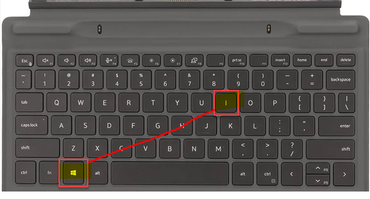
Step 1: Open settings by pressing the Windows key + I
步驟 1:按 Windows 鍵 + I 開啟設定
Step 2: In settings, Click on Time & Language from the left sidebar.
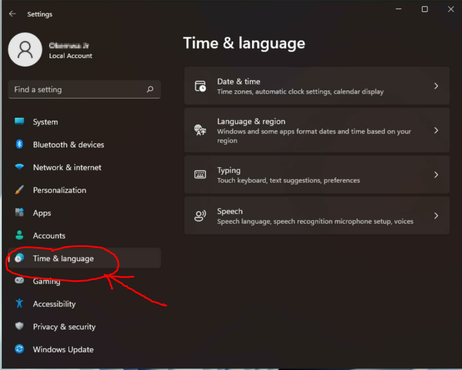
Step 2: In settings, Click on Time & Language from the left sidebar.
步驟 2:在設定中,點選左側邊欄的「時間和語言」。
Step 3: Then, Click on Language & Region from the right-side panel
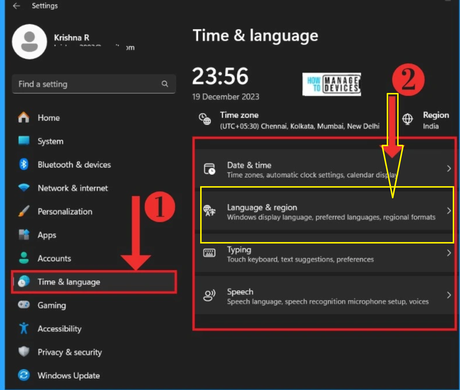
Then, Click on Language & Region from the right-side panel.
然後,點擊右側面板中的「語言和地區」選項。
Step 4: Under the language section, Click on "Add a Language"
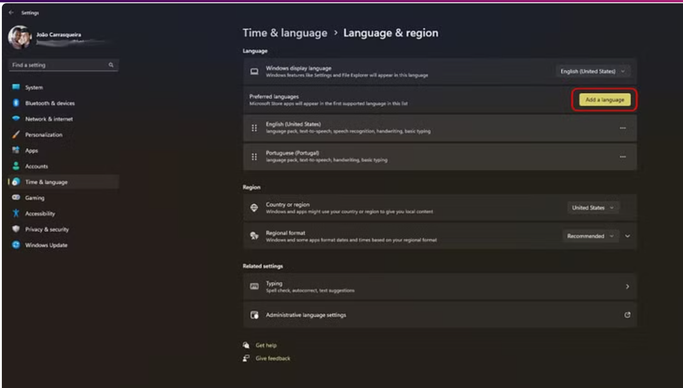

Under the language section, Click on "Add a Language"
在語言設定部分,點選「新增語言」。
Step 5: Select the language you want to install into your computer and then click on Next.
Select the language you want to install into your computer and then click on Next.
選擇要安裝到電腦中的語言,然後按一下「下一步」。
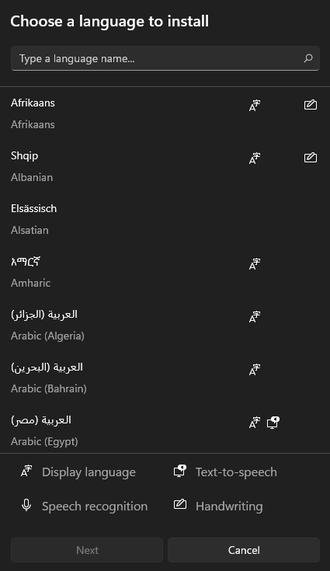
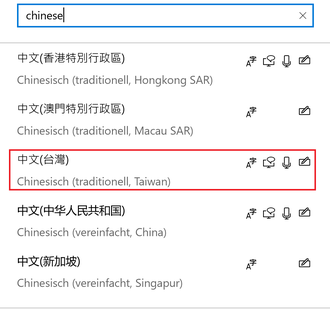
For example, select Chinese.
例如,選擇中文。
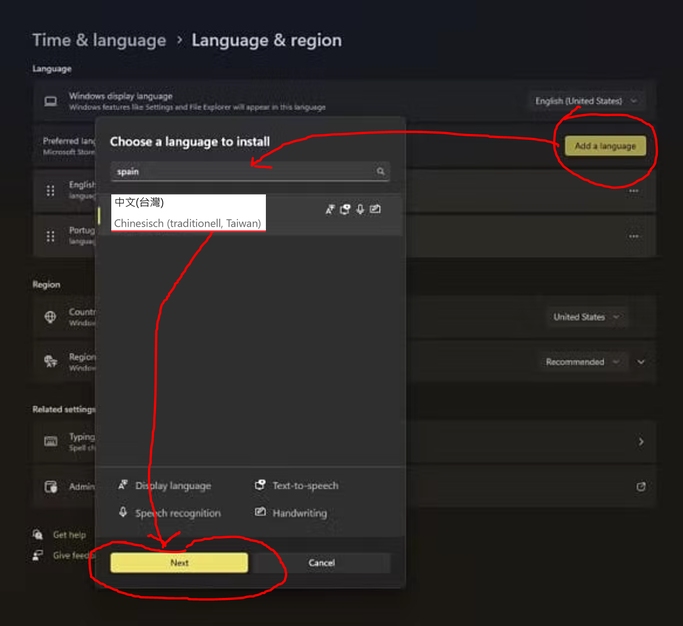
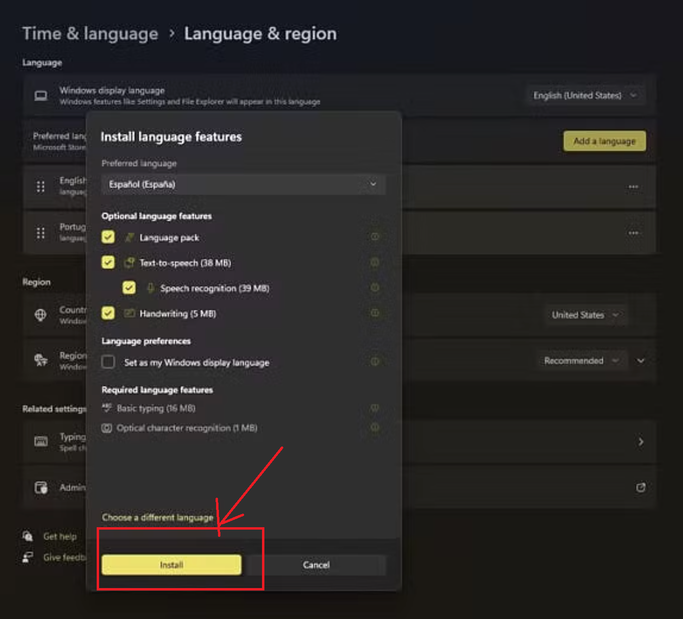
Step 6: To start the installation process. Click on the "Install" Button
After selecting the desired language (multiple languages are available, such as Chinese and English). To start the installation process. Click on the "Install" Button.
選擇所需語言後(有多種語言可供選擇,例如中文和英文). 若要開始安裝過程,請點選「安裝」按鈕。
So, let's dive in and explore how you can effortlessly change your Windows keyboard language on your Windows 11 device, making communication across different languages smoother and more efficient.
那麼,讓我們深入了解如何在 Windows 11 裝置上輕鬆更改 Windows 鍵盤語言,從而使不同語言之間的溝通更加順暢高效。
How to Change Keyboard Language on Windows 11?
There are many ways to change the keyboard language on a Windows PC. You can use different methods; here we will only introduce the method of changing the keyboard language through the Taskbar.
如何在Windows 11上變更鍵盤語言?
在 Windows 電腦上更改鍵盤語言的方法有很多。您可以使用不同的方法;這裡我們只介紹透過工作列更改鍵盤語言的方法。
Method: Using Taskbar
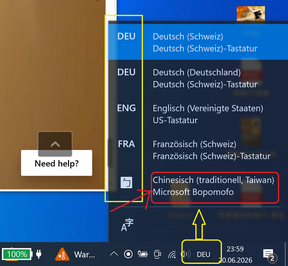
Using Taskbar
Step 1: Click the language indicator on your taskbar (near the clock). (As shown in the screenshot, clicking "DEU" will popup the language list.)
Step 2: Choose the desired language from the popup.
使用工作列
步驟一:點選工作列上的語言圖示(時鐘附近)。(如圖所示,點擊「DEU」將彈出語言清單。)
步驟二:在彈出的選單中選擇所需的語言。
Method: Choose Chinese language
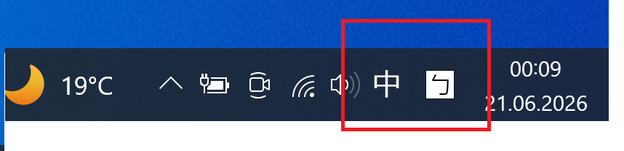
You can change the language by selecting your preferred language. For example: English, Chinese, German, etc. If you choose Chinese, you can now input Chinese characters.
您可以透過選擇您偏好的語言來變更語言。例如:英文、中文、德文等。如果您選擇中文,現在可以輸入中文字了。